How to use KZKT
From installing the APK to a translated chapter.
1. Install
- 1 Download the APK from the Download page. Most phones need arm64-v8a.
- 2 Open the file. If Android asks, allow Install unknown apps for your browser or file manager.
- 3 Tap Install, then Open. KZKT checks GitHub for updates by itself.
2. Connect an AI
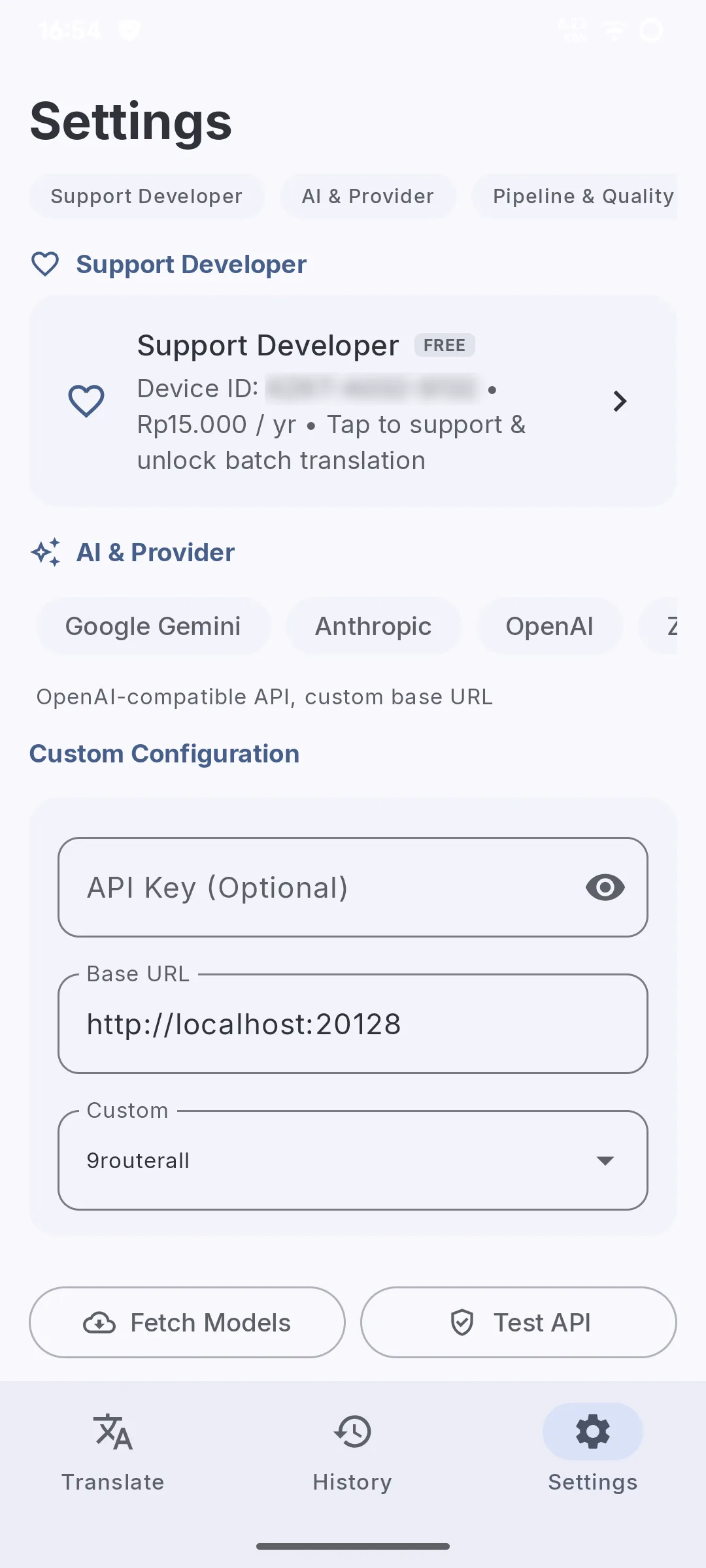
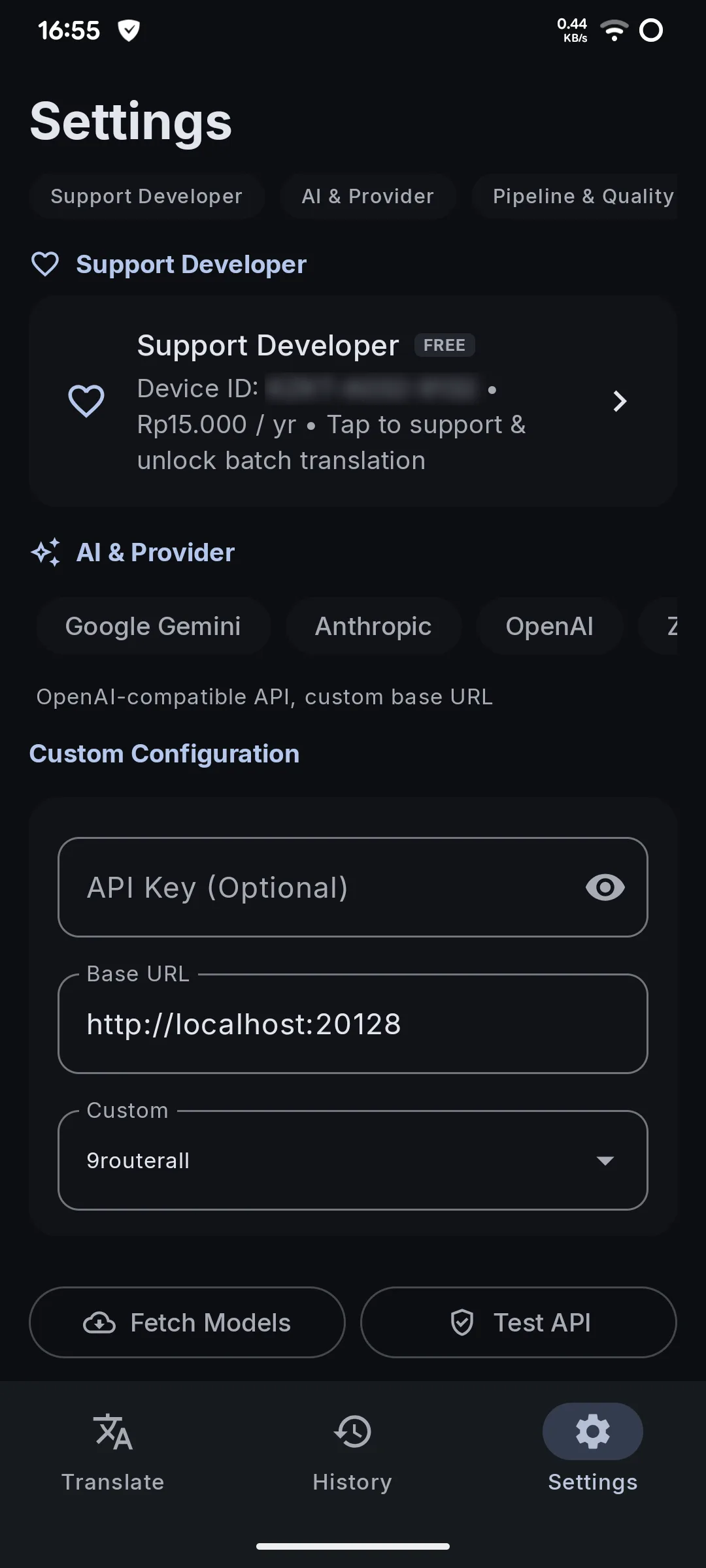
- 1 Open the Settings tab and go to AI & Provider.
- 2 Pick a provider: Google Gemini, Anthropic, OpenAI, OpenRouter, Zen, OpenCode Go, or Custom for any OpenAI-compatible server.
- 3 Paste your API Key, tap Fetch Models and choose a model.
- 4 Tap Test API to check the key.
Tip · Free: get a Gemini key at Google AI Studio (aistudio.google.com). No internet at all: pick LiteRT and download an on-device model such as Gemma or Qwen.
3. Translate
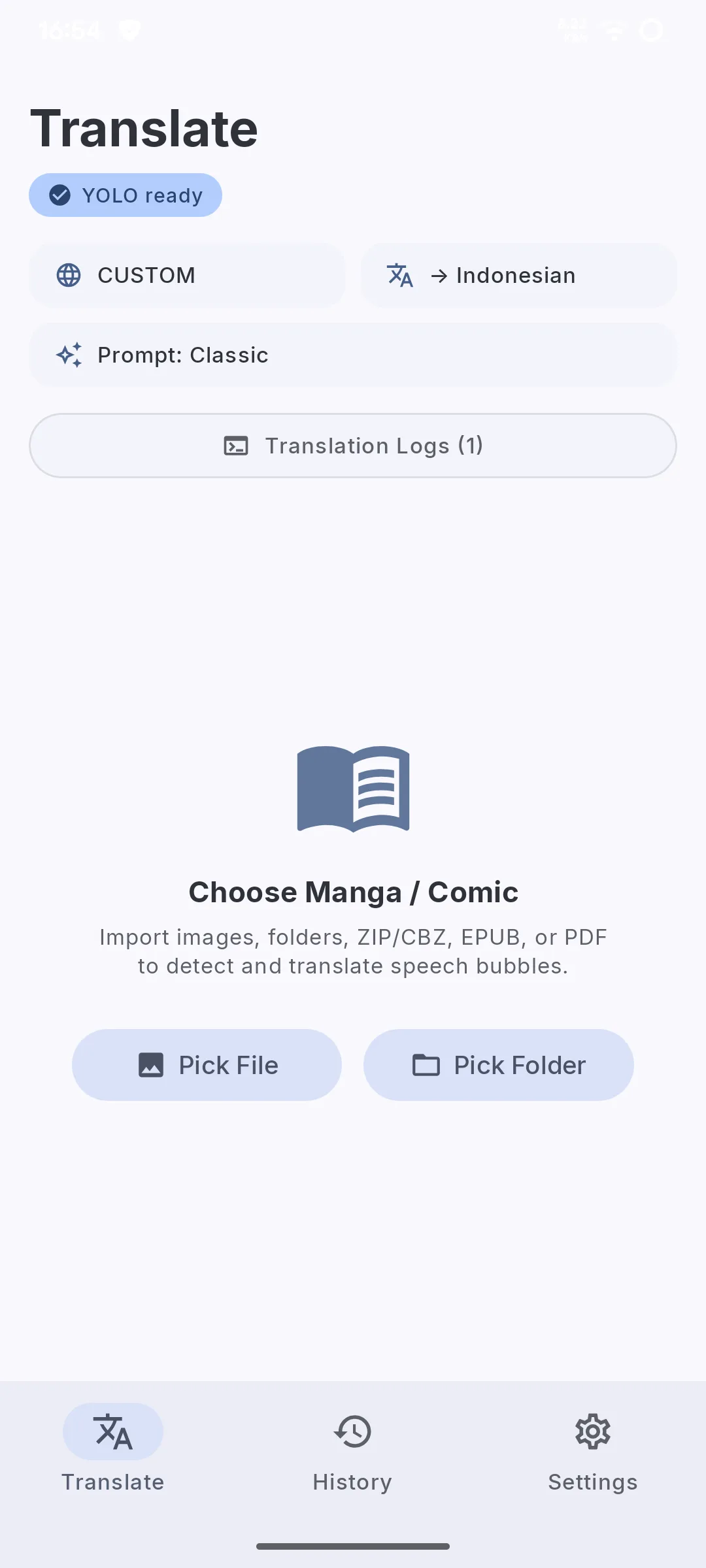
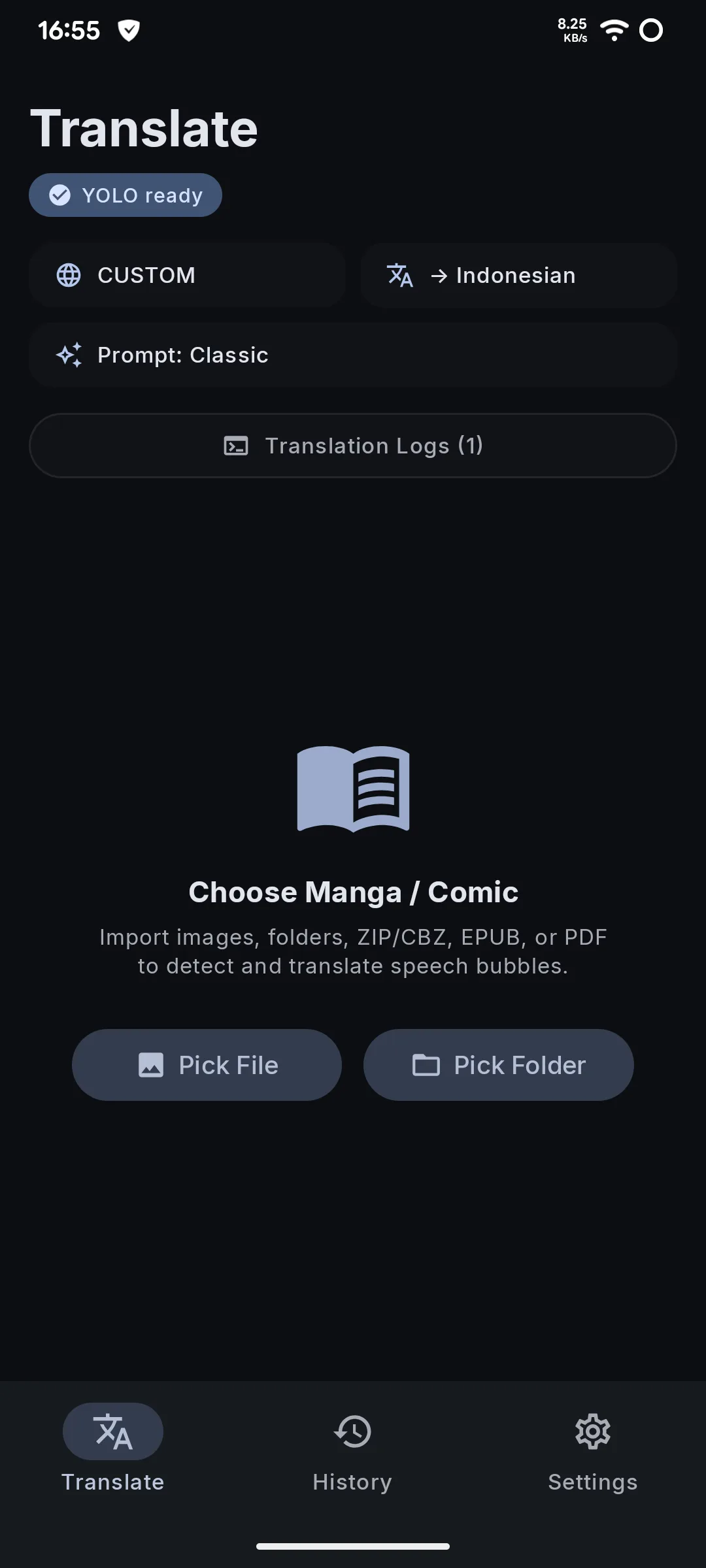
- 1 Open the Translate tab. Wait for YOLO ready.
- 2 Check the provider, the target language and the Prompt style above.
- 3 Tap Pick File (images, ZIP / CBZ, EPUB, PDF) or Pick Folder.
- 4 The translation runs in the background; Translation Logs shows what happens.
4. Touch up in the editor
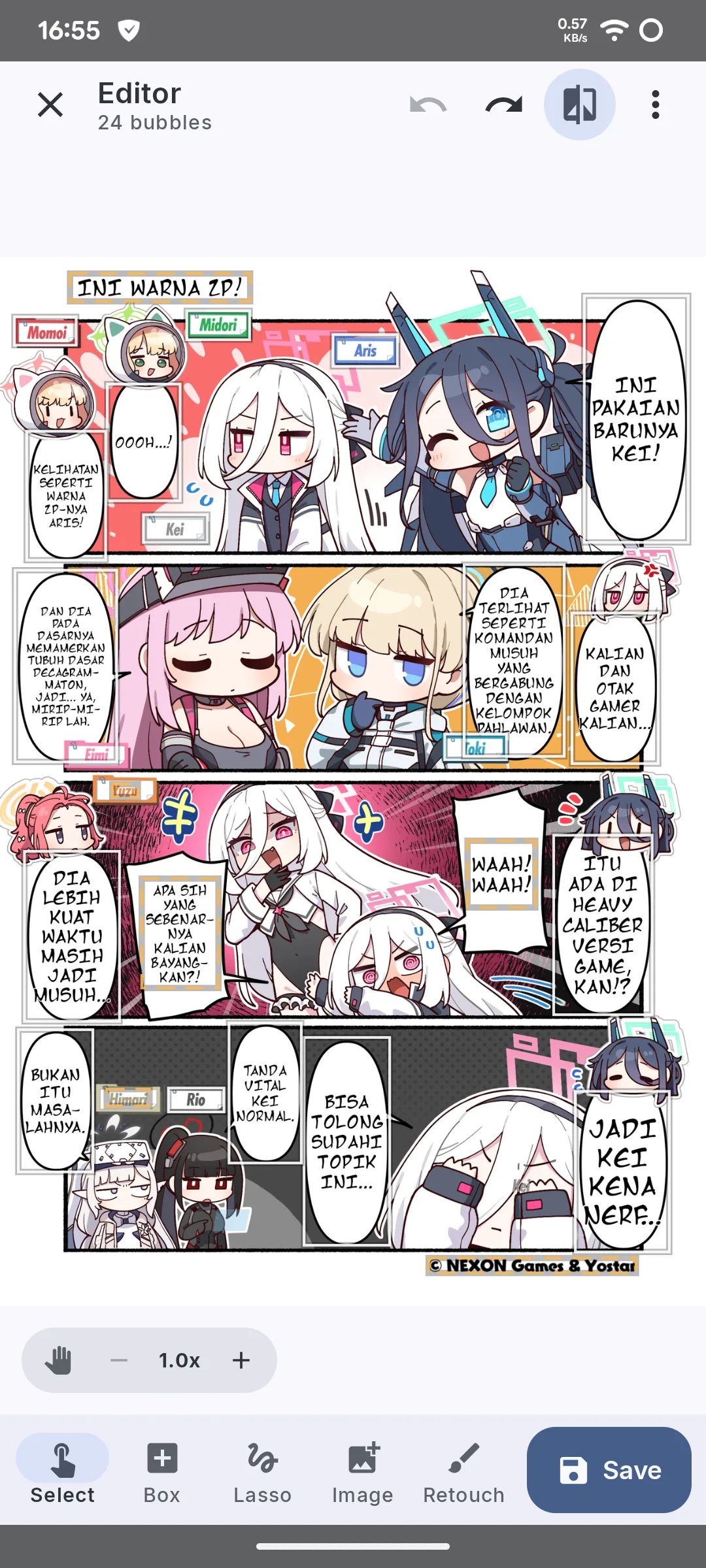
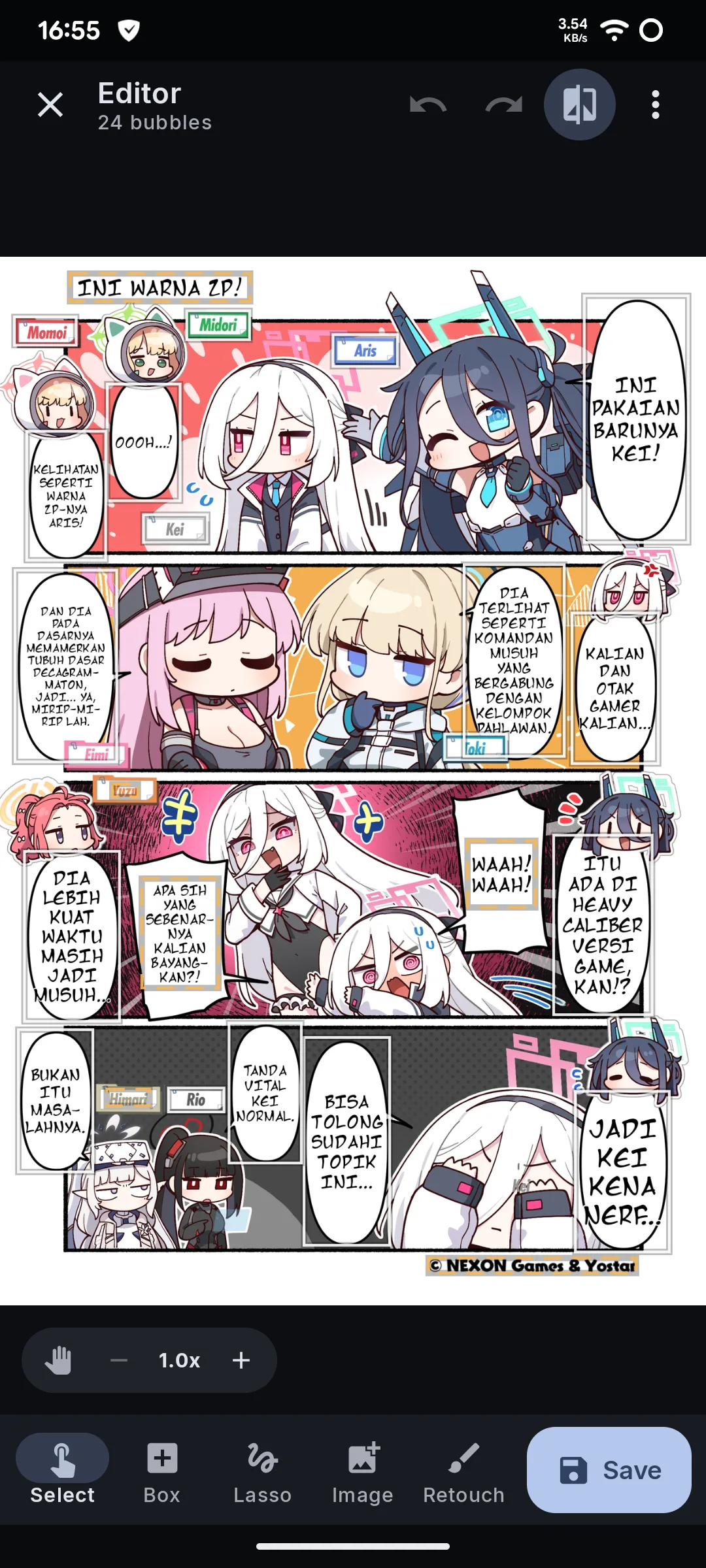
- 1 Open a result and tap the edit button to open the Editor.
- 2 Select: tap a bubble to change its text, font, size and colours. The compare button shows the original.
- 3 Box adds a bubble, Lasso selects a free shape, Image adds a picture, Retouch paints or erases by hand.
- 4 Tap Save when you are done; undo and redo are at the top.
5. History and reading
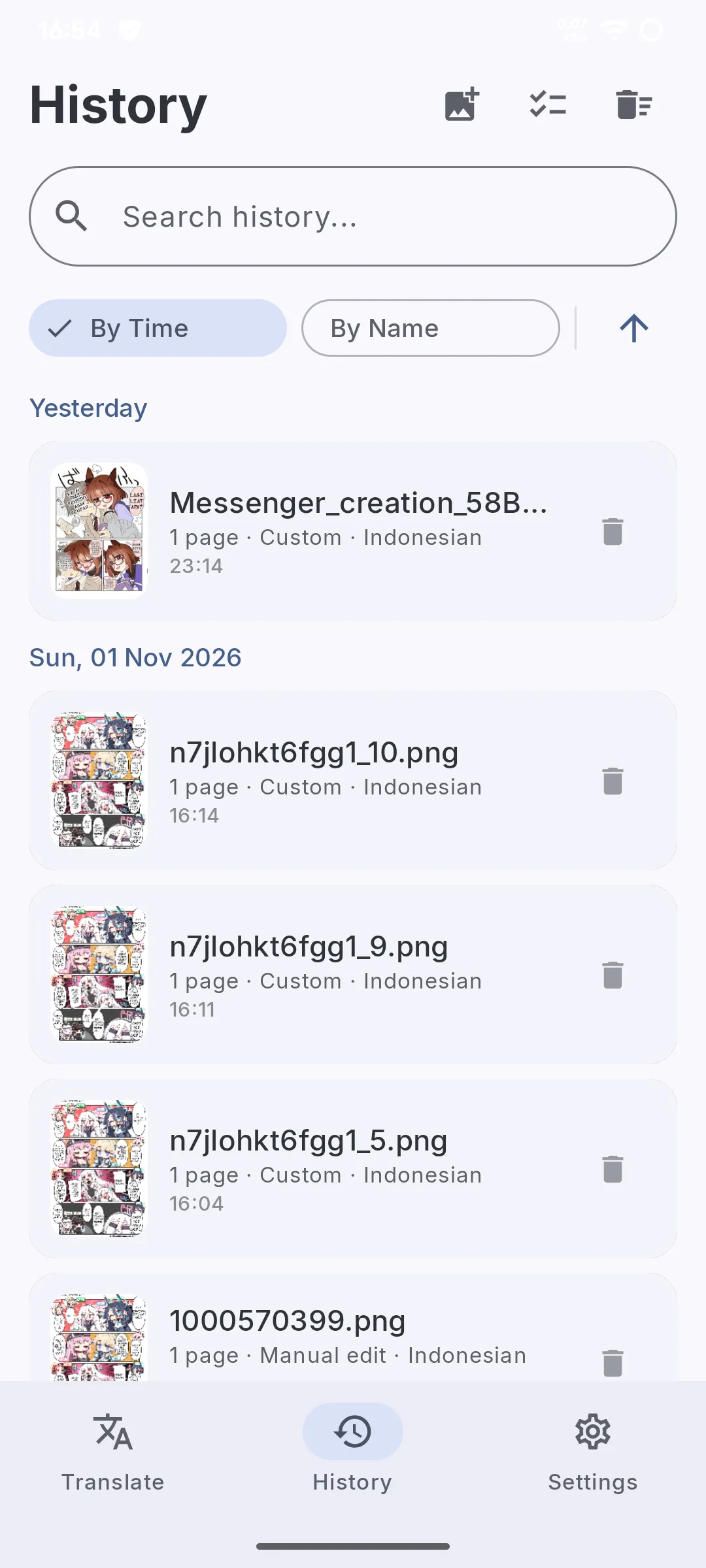
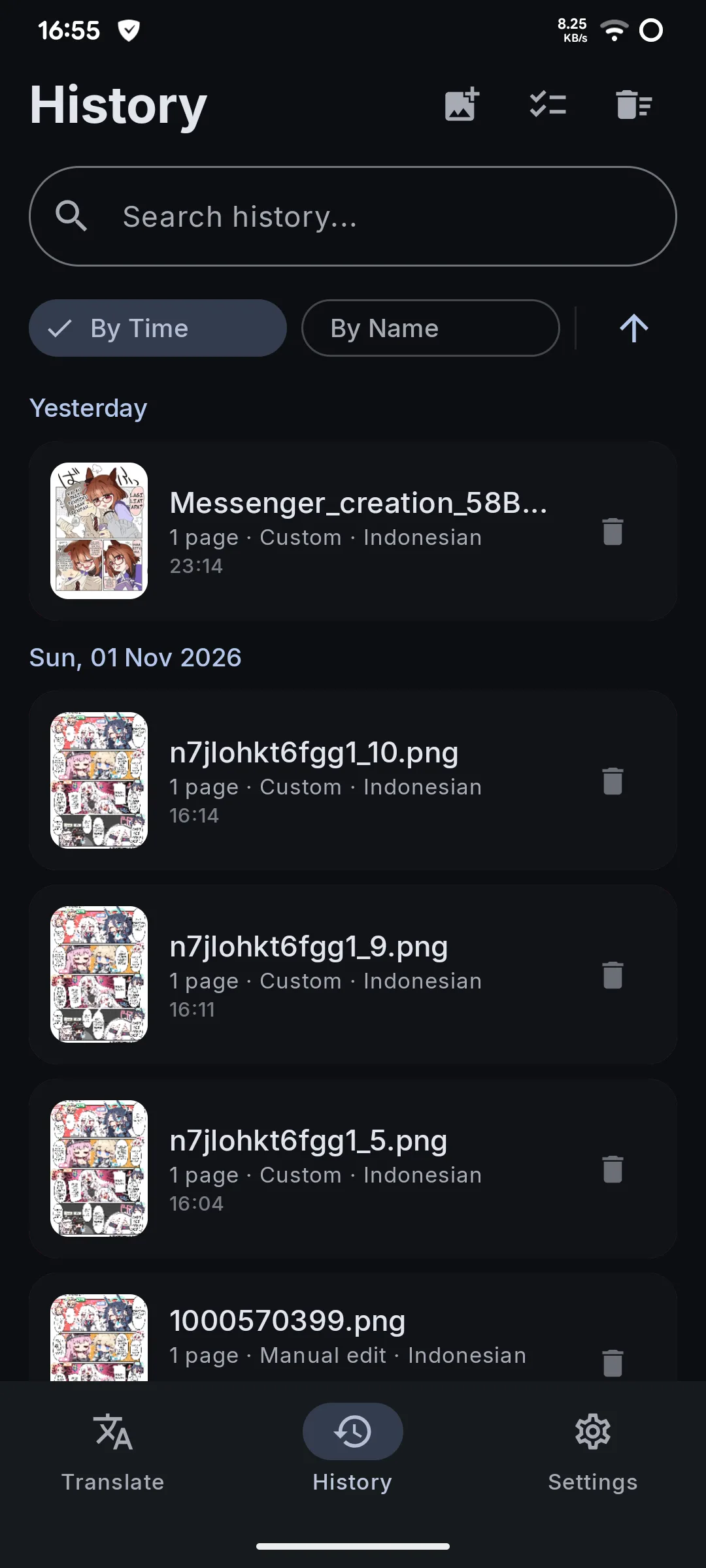
- 1 The History tab lists everything you translated, grouped by day, with search and sort by time or name.
- 2 Tap an entry to read it in page or webtoon mode. Files are saved in /Download/KZKT/.